
Productivity Recommendations
🌐Chrome Extension: Link Grabber
https://chromewebstore.google.com/detail/link-grabber/caodelkhipncidmoebgbbeemedohcdma?utm_source=chrome-ntp-icon
🌐Chrome Extension: Bulk URL Opener
https://chromewebstore.google.com/detail/bulk-url-opener-extension/hgenngnjgfkdggambccohomebieocekm
🌐Chrome Extension: Video Speed Controller – for those who love watching everything at 16x
https://chromewebstore.google.com/detail/video-speed-controller/nffaoalbilbmmfgbnbgppjihopabppdk
🌐Chrome Extension: AI Chat Exporter (Free: 3 PDFs/day)
https://chromewebstore.google.com/detail/ai-chat-exporter-save-cla/elhmfakncmnghlnabnolalcjkdpfjnin
🖥️Software
- 🖱️PowerToys - Mouse Highlighter, Crosshair, and much much more!
- ⌨️Carnac - shows keyboard strokes on screen
- 🎥Loom.com - recording, free for teachers
🧮Microsoft Excel Shortcuts:
- Control + Scroll
- Shift + Scroll
- Control + Shift + V – convert to plain text
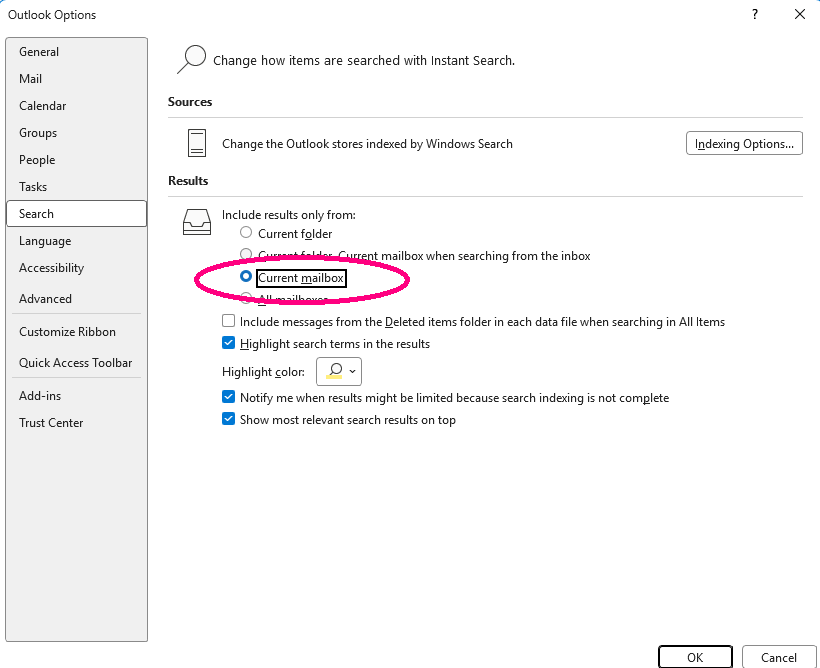
📧Microsoft Outlook Inbox Search Options – Search "Current mailbox" by default
📧Microsoft Outlook Calendar – when the shared calendar from your coworker/manager keeps disappearing from the list
To fix a shared calendar that has disappeared from your list in classic Outlook, you can adjust the Shared Calendar Improvements feature or re-add the calendar.
Classick Outlook (Desktop)
Switching this setting on or off forces Outlook to re-sync or stabilize your calendar list:
- Open classic Outlook and click File in the top-left corner
- Go to Account Settings > Account Settings
- Double-click your email account and click More Settings
- Navigate to the Advanced tab
- Check or uncheck Turn on shared calendar improvements (toggle it opposite to its current state)
- Click OK, close, and restart Outlook